Windows
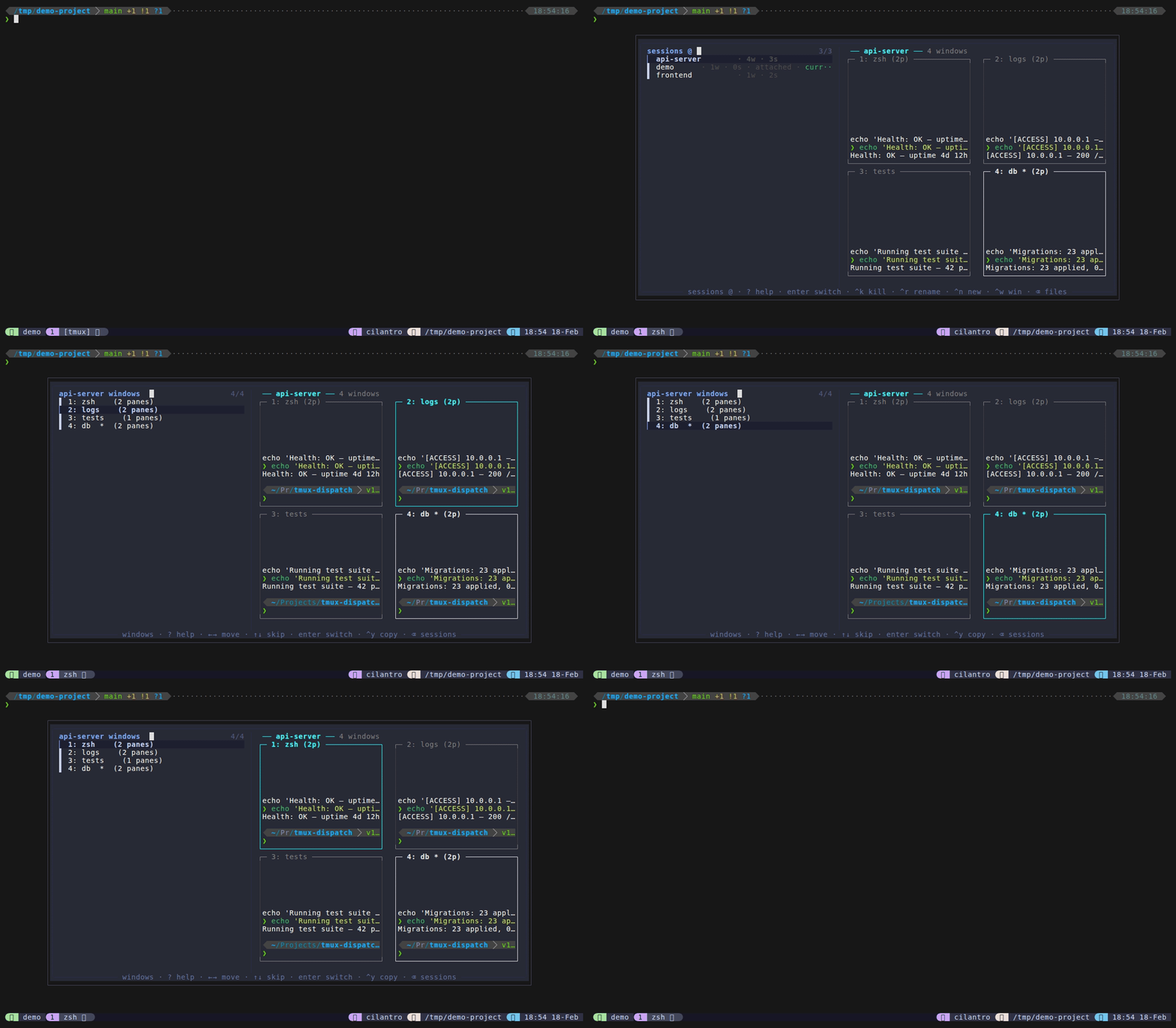
Window picker mode shows all windows for a specific session with pane content previews. It’s accessed from session mode via Ctrl+W and provides a quick way to jump to a specific window.
How to access: Press Ctrl+W in session mode with a session selected.
Window list format: index: name [*] (N panes) where * marks the active window and N shows the pane count.
Keybindings
| Key | Action |
|---|---|
Enter | Switch to selected window (and its session) |
Right | Move right in grid (next window) |
Left | Move left in grid (previous window) |
Down | Move down in grid (same column, next row) |
Up | Move up in grid (same column, previous row) |
Ctrl+Y | Copy window reference (session:index) to clipboard |
Backspace on empty | Return to sessions |
Ctrl+D / Ctrl+U | Scroll preview down/up |
? | Show help cheat sheet in preview |
Escape | Close popup |
Features
- 2D grid navigation – the preview renders a 2-column grid, and the arrow keys navigate spatially within it. Right/Left move one window at a time, Down/Up jump by two to stay in the same column across rows.
- Session grid preview with highlight – session-preview.sh renders the full session grid (same as session mode), but highlights the fzf-selected window with bright cyan borders. The tmux-active window retains its
*marker and white borders; other windows use dim gray. See Preview System for details. - Session+window switch – selecting a window switches both to the session and the specific window.
Configuration
There are no mode-specific configuration options for the window picker.
Tips
- Use
Ctrl+Wfrom session mode when you know which session you want but need to find the right window. - The preview shows the bottom of the pane content (where the prompt usually is), making it easy to identify what’s running in each window.
- Backspace returns to session mode, not files – the navigation chain is files -> sessions -> windows -> sessions -> files.